Bible verses on the screen as the preacher says them
FlowCast listens to the sermon. When the preacher gives a reference, the verse goes live in less than one second. The speech recognition and the verse search run on your computer, on a Mac with Apple silicon or a Windows PC.
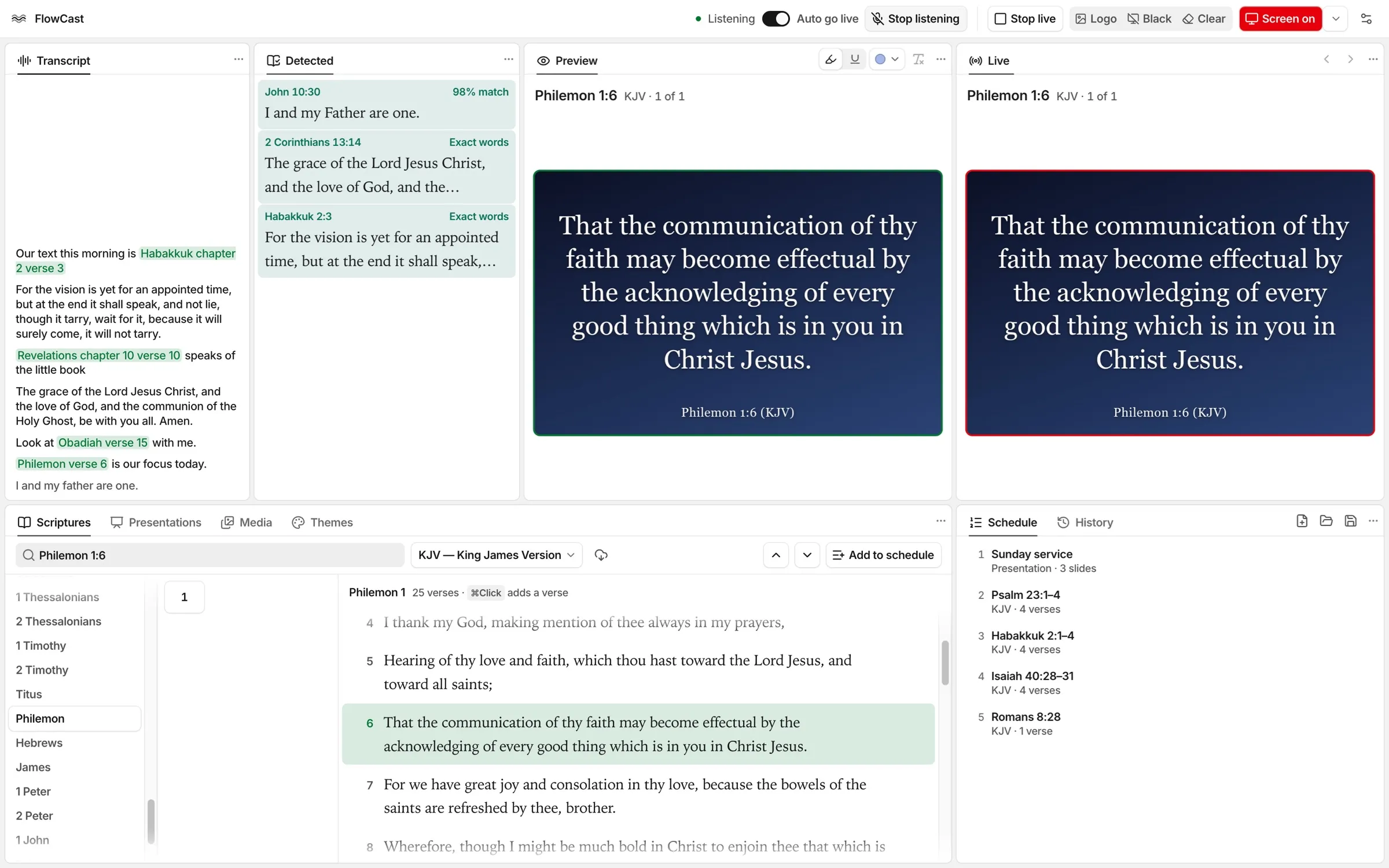
It hears the reference and shows the verse
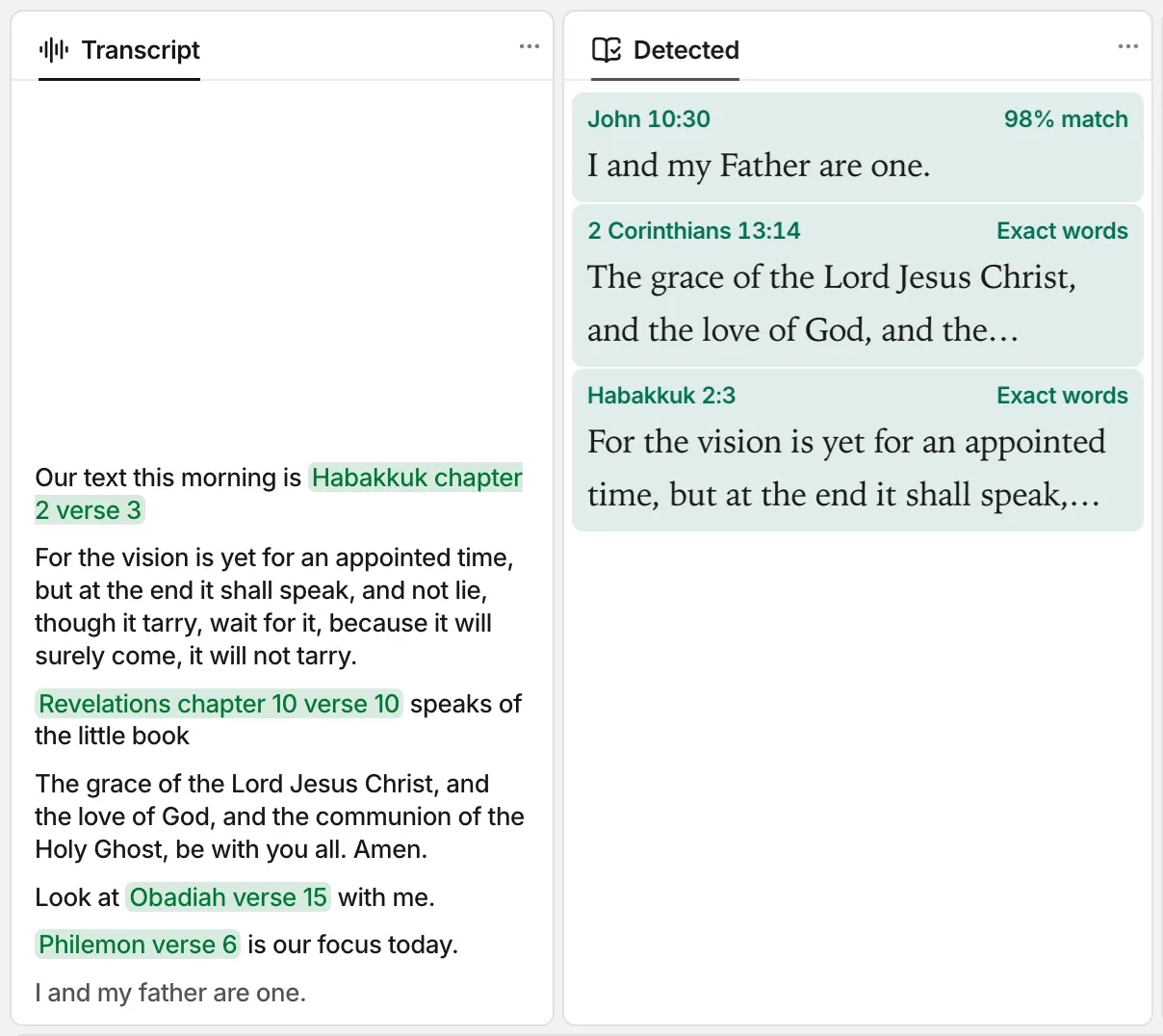
Click Listen, and FlowCast follows the sermon through the microphone. The Transcript panel shows each word it hears. The speech recognition runs on the computer.
Live in less than one second
The preacher says “Habakkuk chapter 2 verse 3”. Less than one second later, the verse is on the screen.
Voice commands
The preacher can say “next verse”, “go back”, or “switch to NIV”. FlowCast hears the command and shows that verse.
You stay in control
Turn off Auto go live, and a verse the preacher names waits in the preview. It goes live when you send it.
Find a verse by reference, words, or idea
Type in the Scriptures panel: a reference such as John 3:16, a list such as John 3:16; Rom 8:28, or words from the verse. Verses with the words in the same order show first.
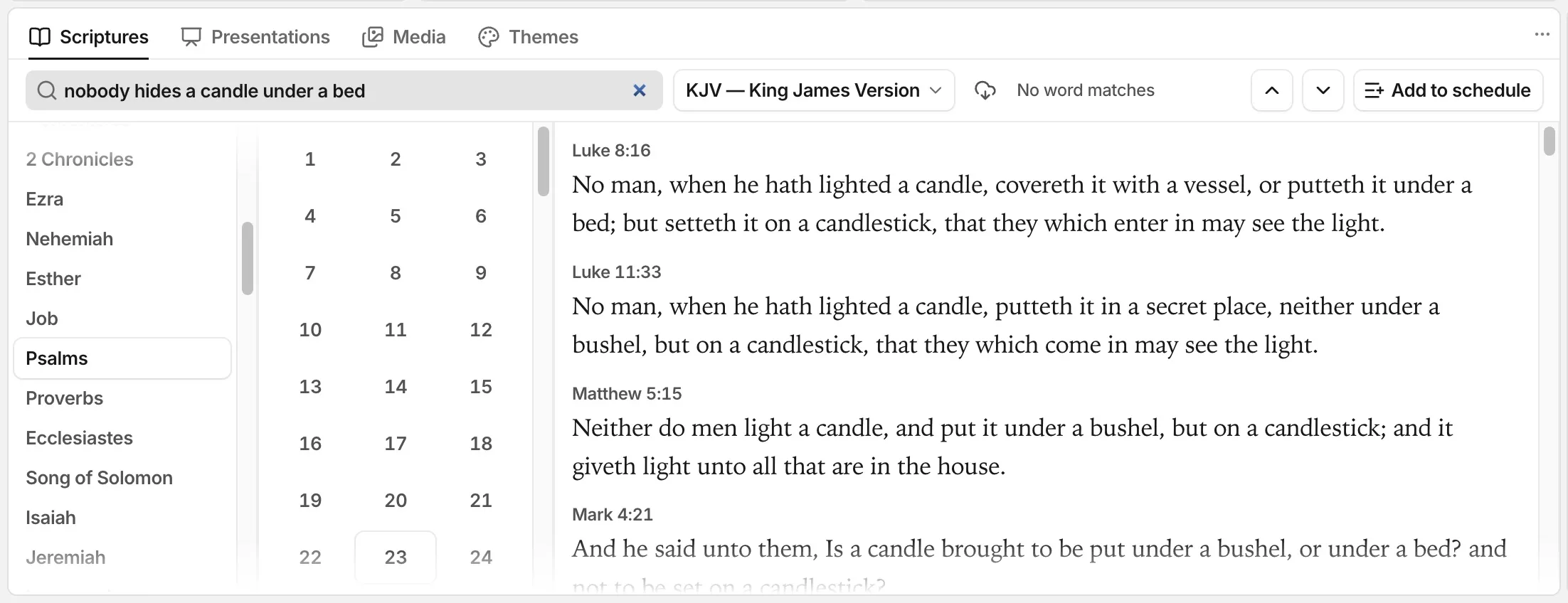
Search by meaning
Type “nobody hides a candle under a bed” to find Luke 8:16 and Mark 4:21. The search runs offline.
Ranges and lists
Shift-click to select a range. Command-click, or Ctrl-click on Windows, to add a verse from a different book. Then split or combine the verses on the slides.
Highlight and underline
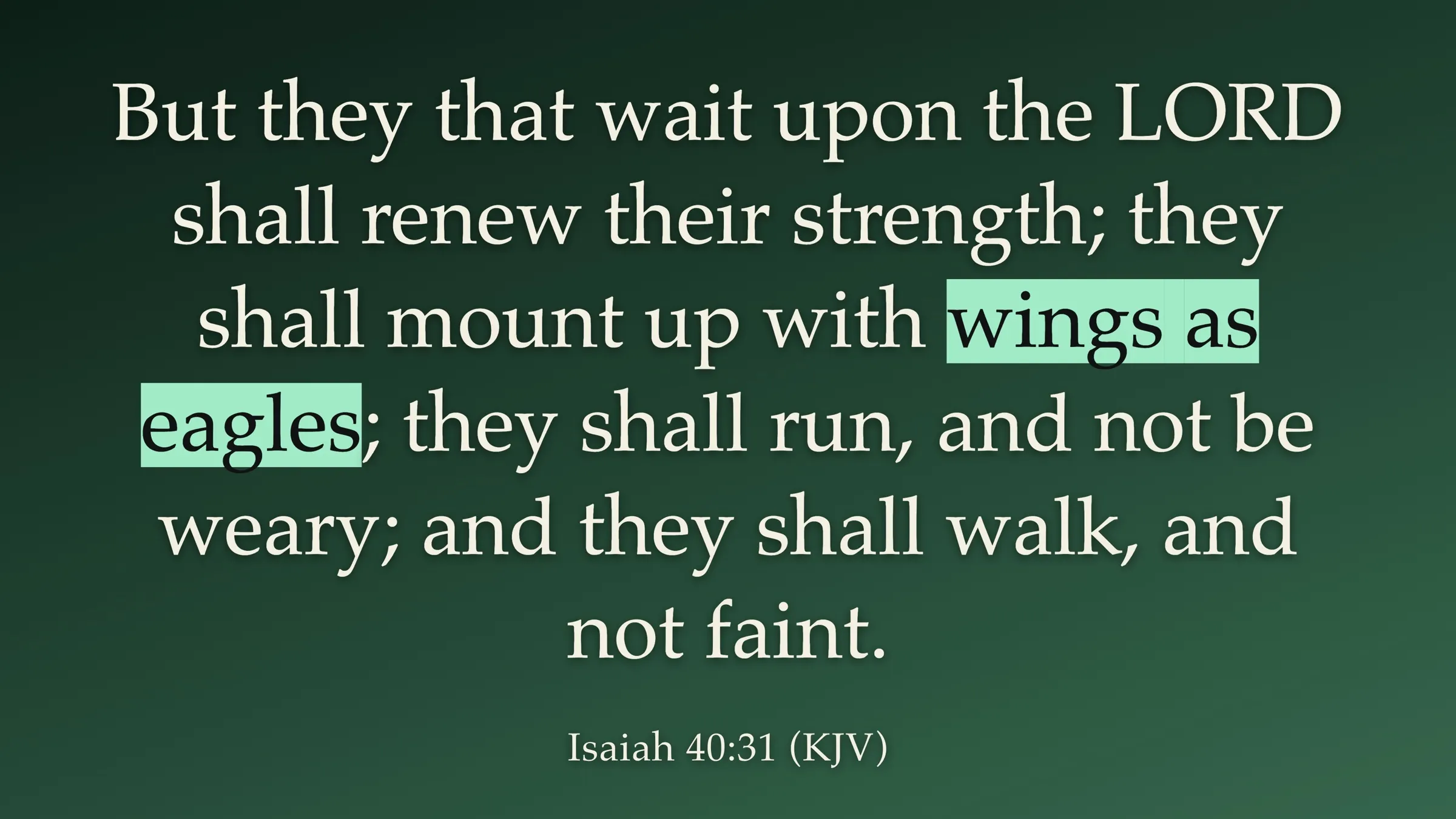
Click a word on the preview, or drag across a group of words, to mark it. The marks go live with the verse.
Made for the people at the media desk
FlowCast keeps the verses, the commands, and the audience screen in one window.
Finds the verses the preacher quotes
The Detected panel compares each sentence with the KJV, NKJV, NIV, ESV, NLT, and AMPC. After words such as “the Bible says”, it shows the closest verse.
Takes commands from the pulpit
“Next verse” and “previous verse” step through the passage. “Switch to NIV” shows the same verses in that version.
Keyboard shortcuts
Enter sends the preview live. On Windows, use Ctrl in place of Command.
- Go liveEnter
- Black screenCommandShiftB
- Clear the textCommandShiftC
- Logo screenCommandShiftL
- Find scriptureCommandF
30 versions without internet
Get more English versions from eBible.org. FlowCast keeps them on the computer.
The screen in a video call
FlowCast can show the audience screen on a web page. Share that browser tab in Zoom or Google Meet.
Slides that look like your church
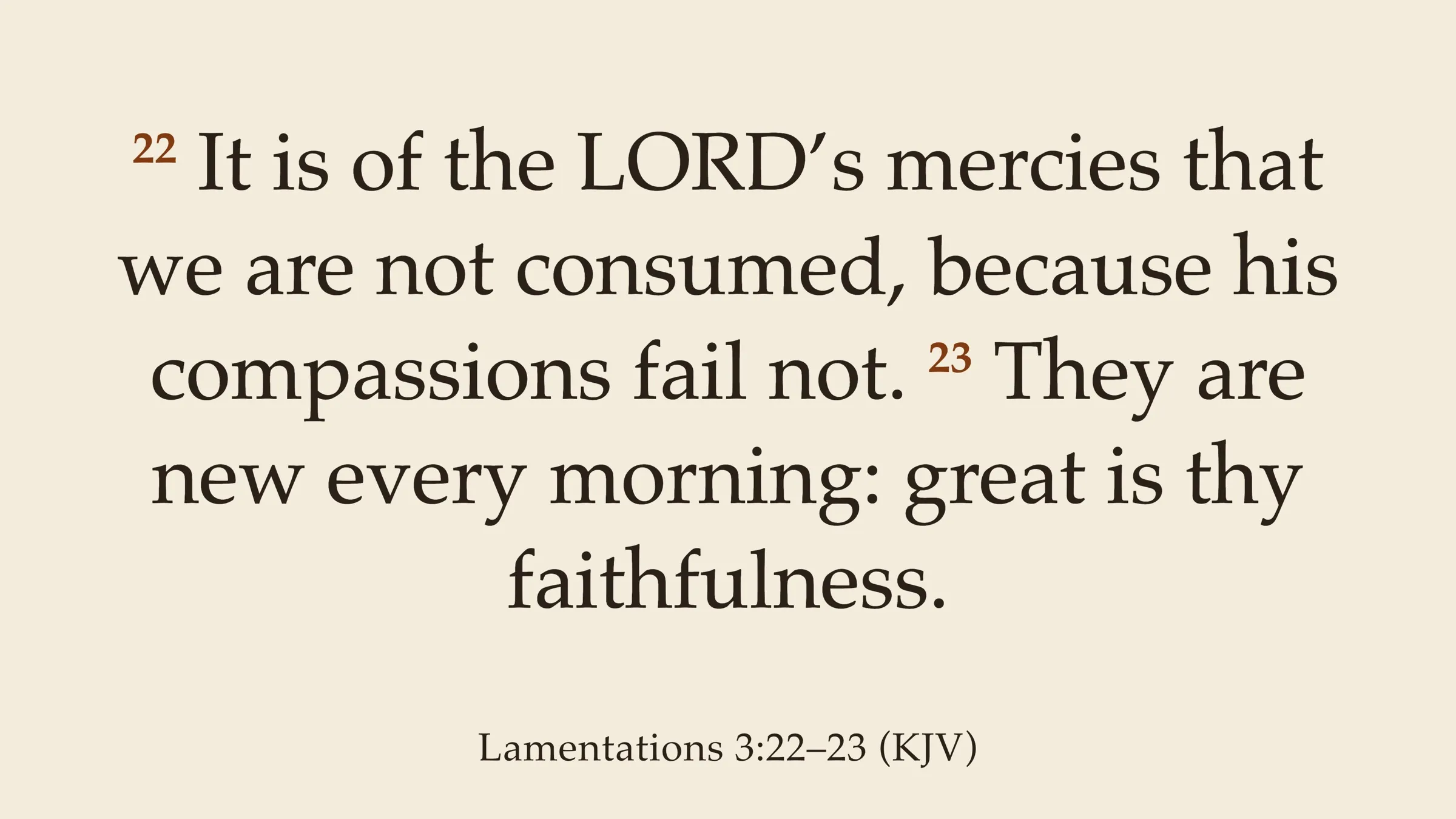
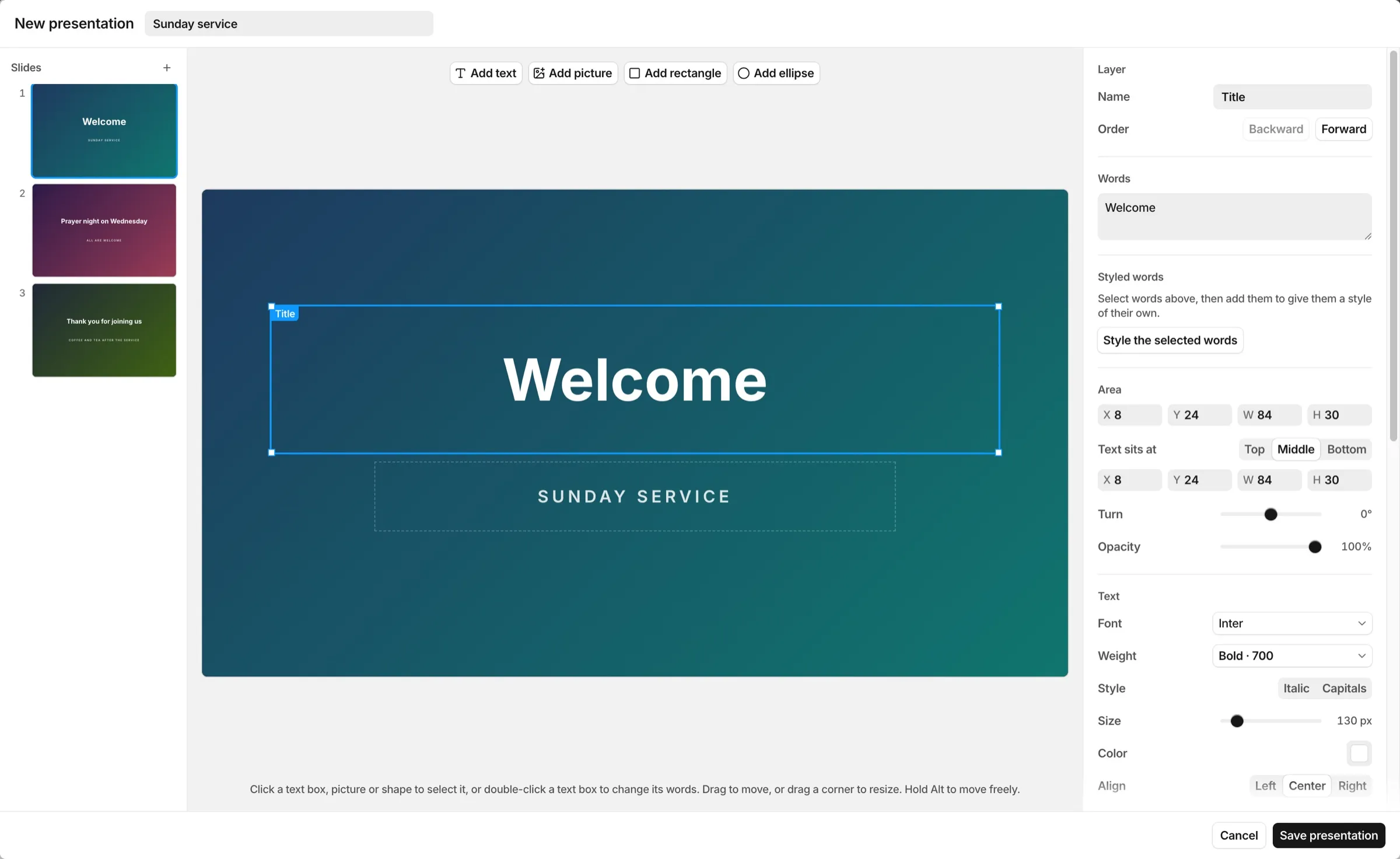
Make themes for the verses and presentations for the rest of the service. Bring in the slides you already have from ProPresenter 7.
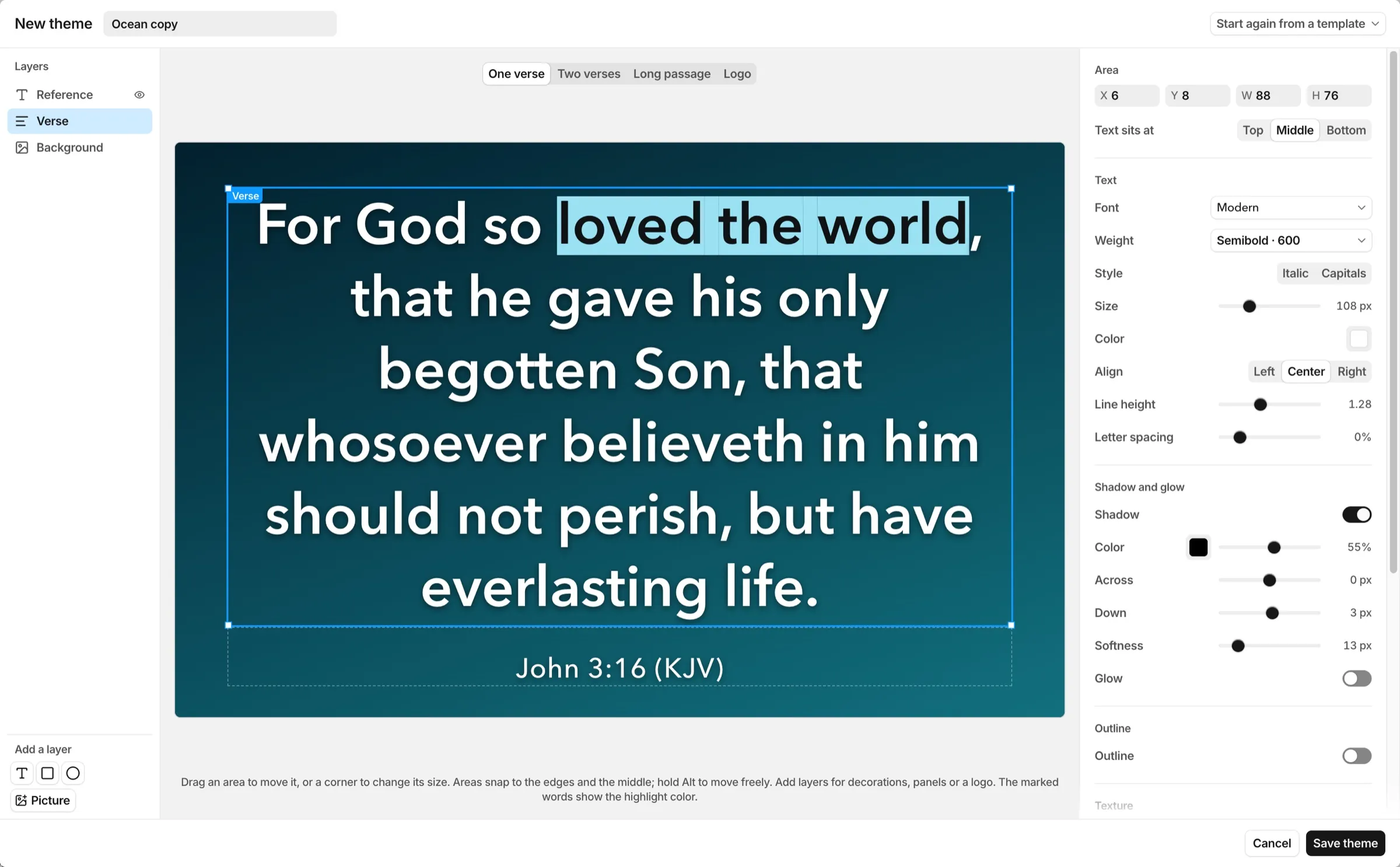

Everything else the service needs
Logo, Black, and Clear
One click shows the logo, a black screen, or only the background. Click again to show the slides.
Pictures and videos
Media keeps a copy of each file. A video plays one time with its sound, then stops on its last picture.
Schedule and history
Save the verses for the service as a .flowcast file. History lists each passage that went live, newest first.
A layout like EasyWorship
Move, float, or hide each panel. Save your layouts and change between them in Settings.
Works without internet
The Bible versions and the verse search are on the computer. The speech model downloads one time, before the first listening.
Updates inside the app
Click Check for Updates. FlowCast downloads the new version and installs it when you restart or quit the app.
Download FlowCast
FlowCast runs on a Mac with Apple silicon and on Windows. Windows on Arm runs the x64 installer.